Piano Roll · Catch PlayheadMedia Pool · your resultsProcessing Studio · your chain
FORMATS
One file. The format you need.
Drop audio onto WAV, MP3, AAC / M4A or FLAC. For OGG Vorbis, select OGG in the FLAC tile menu before dropping your file. Originals stay intact; existing results are never overwritten.
Open MIDI in Piano Roll with Edit MIDI on the MIDI tile or Open in Piano Roll… in its menu. Audio → MIDI transcribes melodies and chords from audio.
Features
Choose Edit MIDI, Split or Render in the MIDI tile menu: the selected action handles both clicks and dropped files. Edit note pitch, length and velocity in Piano Roll, with Undo / Redo and export. Catch Playhead keeps the playhead in view; manual horizontal scrolling turns Catch off. Playing notes glow in a neon color based on velocity; Reduce Motion keeps a steady highlight.
LOCAL STEMS · BETA
Listen to your recording in parts.
STEMS creates vocals, drums, bass and other sounds as separate audio files. VOCALS and DRUMS extract a selected audio stem.
Features
Work with vocals, drums, bass and other sounds separately. Install additional models once in Settings → Components; processing runs on your Mac.
MEDIA POOL AND QUEUE
A result becomes your next step.
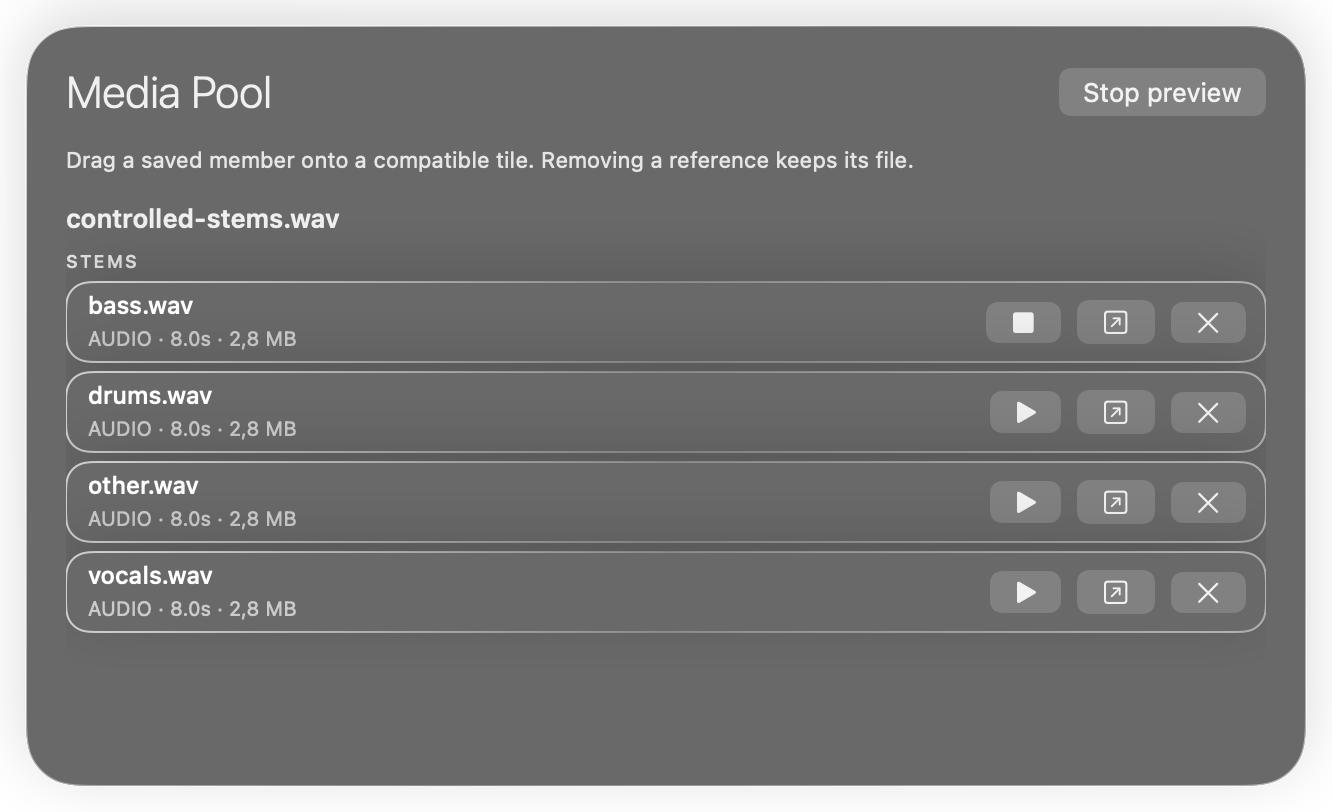
Follow your processing progress. Finished files collect in Media Pool: listen to the result, drag it onto another tile for the next step, or reveal it in Finder.
Features
Audition saved results, continue processing by dragging them to another tile, and reveal files in Finder. Removing a Media Pool reference keeps the file itself.
FINDER · OPTIONAL
Another format. Keep your context.
Select audio in Finder → Control-click → Services → an AudioFlow command. One file or several enter the shared queue, with progress and cancellation in the menu bar.
Features
Enable the add-on in Settings → Finder Quick Conversion → Install / Update. Finder commands share the AudioFlow queue and settings; original files stay intact.
Build an offline Input → DC Offset → Normalize → Limiter → Output chain. Save presets in library folders, then process a batch: each file gets its own result.
Features
Set Normalize to LUFS, RMS or Peak and add Limiter to your chain. Compare original Dry with processed Wet. Save presets and apply the same workflow to a batch of files. Output formats: WAV, MP3, AAC/M4A, FLAC and OGG. Apple AU modules are unavailable in this beta.
Select one or more audio files and convert them through the system Services menu. You do not need to open the main AudioFlow window.
01
Select your files
One track or several audio files in Finder.
02
Open Services
Control-click or right-click → Services.
03
Choose your format
An AudioFlow command adds the files to the shared conversion queue.
WAV · MP3 · AAC / M4A · FLAC · OGG Vorbis
Keep your creative flow
Progress and Cancel are available in the menu bar. Results use your shared AudioFlow settings. Originals are preserved and existing files are never overwritten.
This diagram shows the steps, not the macOS interface.
Enable it once in Settings
Settings → Finder Quick Conversion (optional) → Install / Update. Installation links the add-on to this copy of AudioFlow. No models or downloads are required.
If commands are hidden: System Settings → Keyboard → Keyboard Shortcuts → Services. macOS controls their placement and enabled state.
Exact command names in macOS
AudioFlow — Convert to WAV
AudioFlow — Convert to MP3
AudioFlow — Convert to AAC (M4A)
AudioFlow — Convert to FLAC
AudioFlow — Convert to OGG Vorbis
These commands live under Services, not in a separate top-level Finder menu.
YOUR FILES STAY WITH YOU
Local. And on your terms.
01
No audio uploads
Conversion and processing run on your Mac. AudioFlow does not send your audio or MIDI to the cloud.
02
Install models once
Install optional components explicitly in Settings. Compatible app updates reuse the models you already have.
The Finder conversion add-on is enabled through a separate action in Settings. Installing the app does not activate it.
0.2.0 Beta 42 · BUILD 88
Free public beta for Mac.
Install from the DMG manually the first time. Older builds without the updater also need a manual install. Beta update checks are available in the app; updates are not installed without your choice.
In this beta: clearer Processing Studio controls, direct MIDI opening in Piano Roll and bright velocity-colored playing notes. Catch Playhead helps you follow playback.
Yes. Project support is voluntary and is not required to access features. You can download the beta on this page.
Do I need internet for processing?
Audio and MIDI are processed locally. Internet is needed for the first download of optional components and explicitly requested updates. These downloads contact model distribution servers; they do not upload your audio.
Do models download again after each app update?
No. Optional models are stored in your per-user components folder, separately from the app. Compatible versions reuse that installation. Install, update and repair actions are explicit in Settings.
How can I work with MIDI?
For an existing MIDI file, choose Edit MIDI on the MIDI tile or Open in Piano Roll… in its menu. Audio → MIDI transcribes melodies and chords from audio. Edit notes and velocity in Piano Roll; Split separates parts and Render turns MIDI into audio.
How can I use separate stems?
Audition vocals, drums, bass and other sounds separately, save the parts you need, and continue working with them in your music project.
Include the version and build, your macOS version, the action you took and the observed result. Only share audio or private files if you choose to. Do not send passwords or other secrets.
Your music. Your choice to support.
If AudioFlow helps your work, you can support its development.