Apple Silicon
ARM64 Mac · Intel is not supported
 AudioFlow
 · by MetronomLab
Get ready for a free native audio toolkit. Convert formats, build offline processing chains, edit MIDI and work with local stems — right on your Mac.
Public beta 0.2.0 Beta 42 · build 88. Apple Silicon, macOS 15+. First installation is manual; the beta is ad-hoc signed, without Apple notarization.
SHA256: 39168f6bb1814f65170556cb23abeb5d1a3624ee93b7a2794312a25e4d26f29e
ARM64 Mac · Intel is not supported
macOS 15 or later
Current beta DMG · decimal MB
Build an offline Input → DC Offset → Normalize → Limiter → Output chain. Save presets in library folders, then process a batch: each file gets its own result.
Set Normalize to LUFS, RMS or Peak and add Limiter to your chain. Compare original Dry with processed Wet. Save presets and apply the same workflow to a batch of files. Output formats: WAV, MP3, AAC/M4A, FLAC and OGG. Apple AU modules are unavailable in this beta.
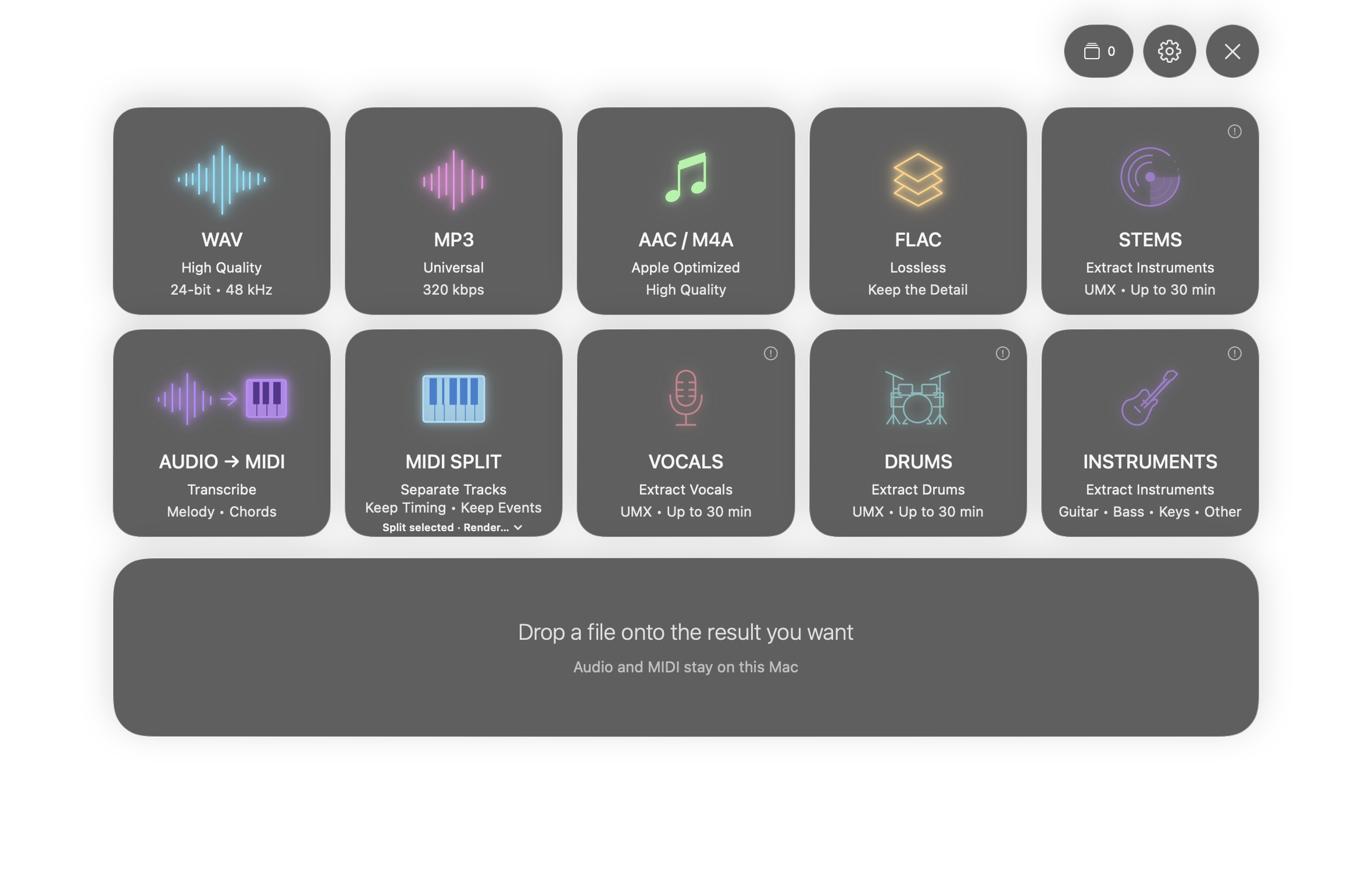
Open MIDI in Piano Roll with Edit MIDI on the MIDI tile or Open in Piano Roll… in its menu. Audio → MIDI transcribes melodies and chords from audio.
Choose Edit MIDI, Split or Render in the MIDI tile menu: the selected action handles both clicks and dropped files. Edit note pitch, length and velocity in Piano Roll, with Undo / Redo and export. Catch Playhead keeps the playhead in view; manual horizontal scrolling turns Catch off. Playing notes glow in a neon color based on velocity; Reduce Motion keeps a steady highlight.
First install · manual
Close any older copy of AudioFlow before replacing it. Save your work first.
Double-click the AudioFlow DMG in Finder. Download the image using the link on this page and verify its SHA256.
Drag AudioFlow into Applications. Wait until copying finishes, then eject the disk image. Launch the installed copy, not the copy inside the DMG.
Open AudioFlow from Applications. macOS may block this beta on the first launch; read the security note below before proceeding.
Local components · optional
Format conversion does not need stem models. Install optional components explicitly in Settings → Components. Audio processing stays on your Mac; components may need an initial internet download.
Compatible models are stored per user and reused after an app update. Checking, repairing or updating components is a separate action in Settings.
~/Library/Application Support/AudioFlow/components Allow extra disk space for the components you choose and your output files. These are component estimates, not a minimum for every installation.
Formats & workflows
Convert between WAV, MP3, AAC / M4A, FLAC and OGG Vorbis. For OGG, choose Vorbis from the FLAC tile menu; set its quality in Settings.
Know before you start
The first install is manual. Later beta updates use Check for Updates when a release has been published. Automatic checks are optional and off by default; each installation needs confirmation. Compatible installed models remain in place.
Audio → MIDI is for melodies and chords, not drum transcription or automatic instrument detection. Stem separation may contain bleed or artifacts. DRUM SPLIT into kick, snare and other individual instruments is unavailable. Guitar / Keys separation is unsupported. Kim vocals is opt-in and experimental, limited to 32-second input.
Processing Studio: mono/stereo, 8–96 kHz, files up to 10 minutes. Choose an APFS folder for saved output. Audition preview: up to 120 seconds at 44.1 / 48 / 96 kHz.